How to Automate Amazon EBS Snapshot Deletion Using AWS Lambda and Boto3

Automating AWS EBS Snapshot Cleanup with AWS Lambda: A Step-by-Step Guide Managing cloud storage costs effectively is one of the key responsibilities of DevOps and Cloud Engineers. Amazon Elastic Block Store (EBS) snapshots are great for backup and disaster recovery, but leaving unused or stale snapshots behind can quietly rack up unnecessary costs.
In this tutorial, we will automate the deletion of unattached Amazon EBS snapshots using AWS Lambda and Boto3 (AWS SDK for Python).
Architecture Overview Active State: The Lambda function fetches all EBS snapshots owned by your account and verifies if the EC2 instances associated with their underlying volumes are running.
Termination: When an EC2 instance is terminated, its volumes are deleted, but the snapshots remain behind as orphaned data.
Automated Cleanup: When triggered, our Lambda function detects that the instance no longer exists and deletes the associated snapshot automatically.
Step-by-Step Implementation Guide Step 1: Verify Active EC2 Instances Before setting up the cleanup automation, ensure your target EC2 instance is running and attached to an EBS volume.
Navigate to the EC2 Dashboard in your AWS Management Console.
Under Instances, select Instances.
Identify your running instance (e.g., lambda with state Running).
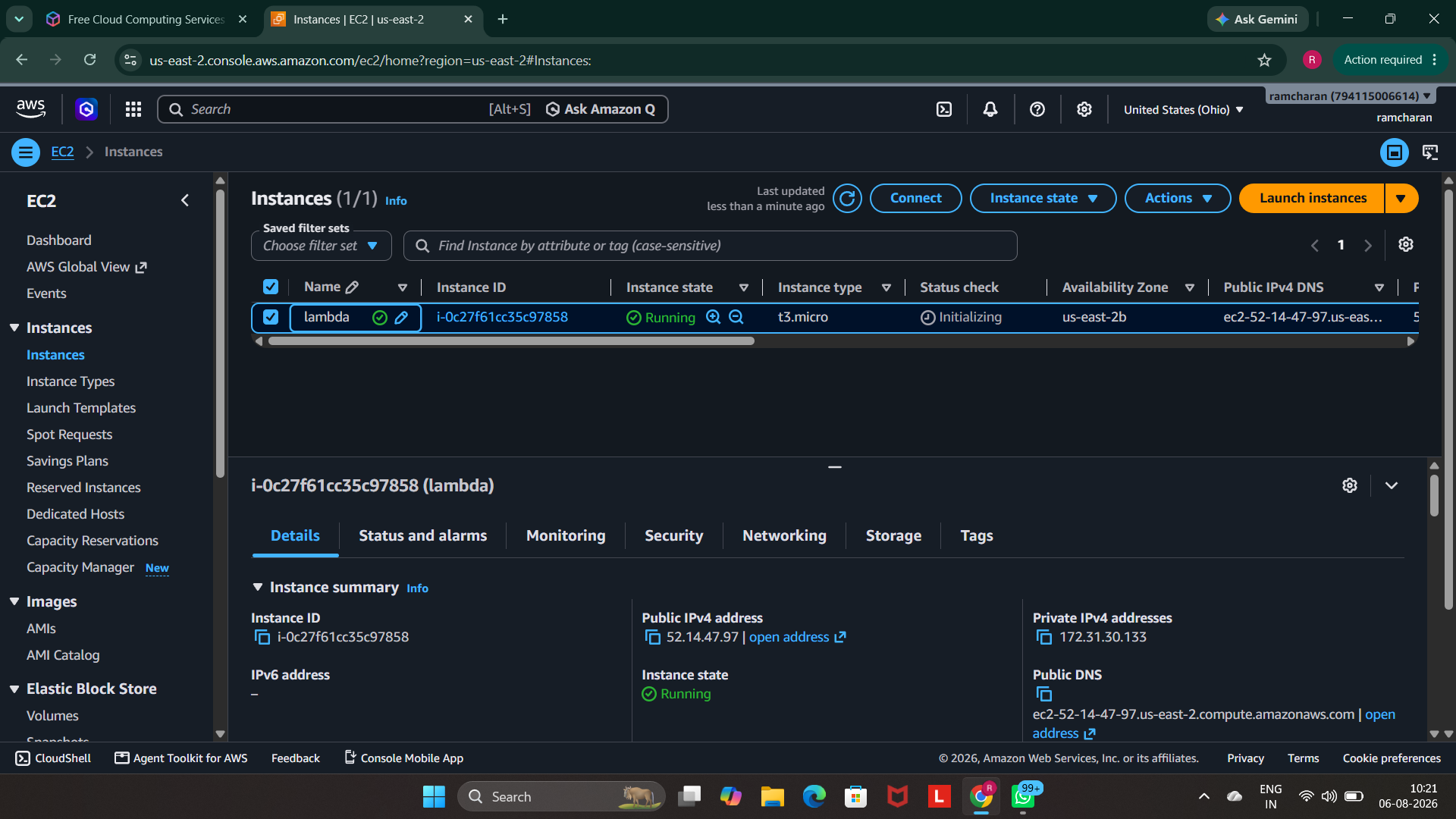
Figure 1: Viewing active running instance on the AWS EC2 Console.
Step 2: Create an EBS Snapshot Next, verify or create an EBS Snapshot attached to the volume of your active EC2 instance.
Go to Elastic Block Store > Volumes or Snapshots on the left menu.
Confirm the volume attached to your running EC2 instance has a corresponding snapshot created.
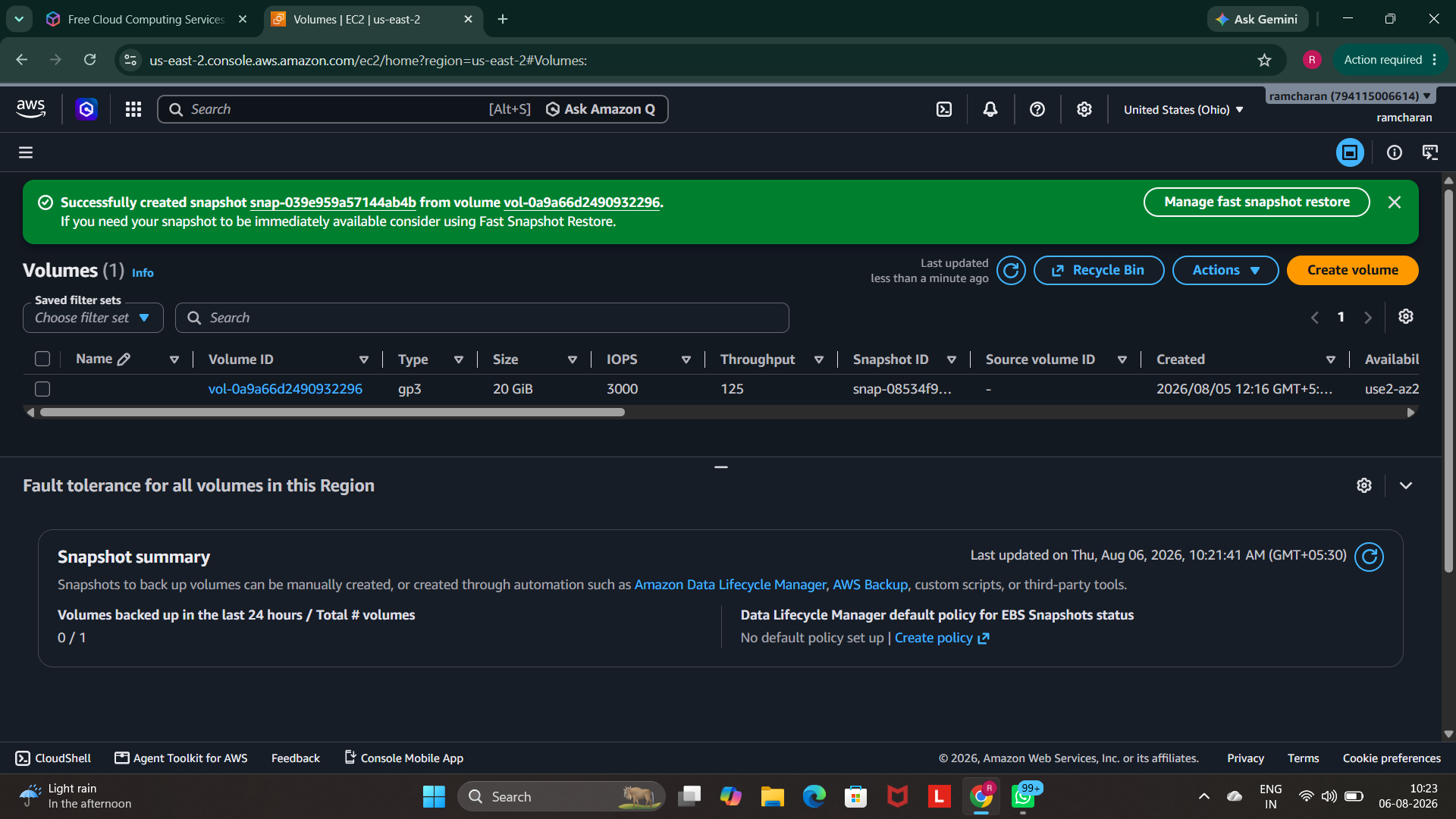
Figure 2: Viewing the active volume and its associated EBS snapshot.
Step 3: Configure IAM Role for Lambda AWS Lambda requires permissions to inspect EC2 instances, list snapshots, and delete unused snapshots.
Navigate to the IAM Console > Roles > Create Role.
Select Lambda as the trusted entity.
Attach policies that grant access to EC2 and EBS snapshot management (ec2:DescribeSnapshots,
ec2:DescribeInstances,
ec2:DeleteSnapshot).
Set the Role name as LambdaSnapshotRole
click Create role.
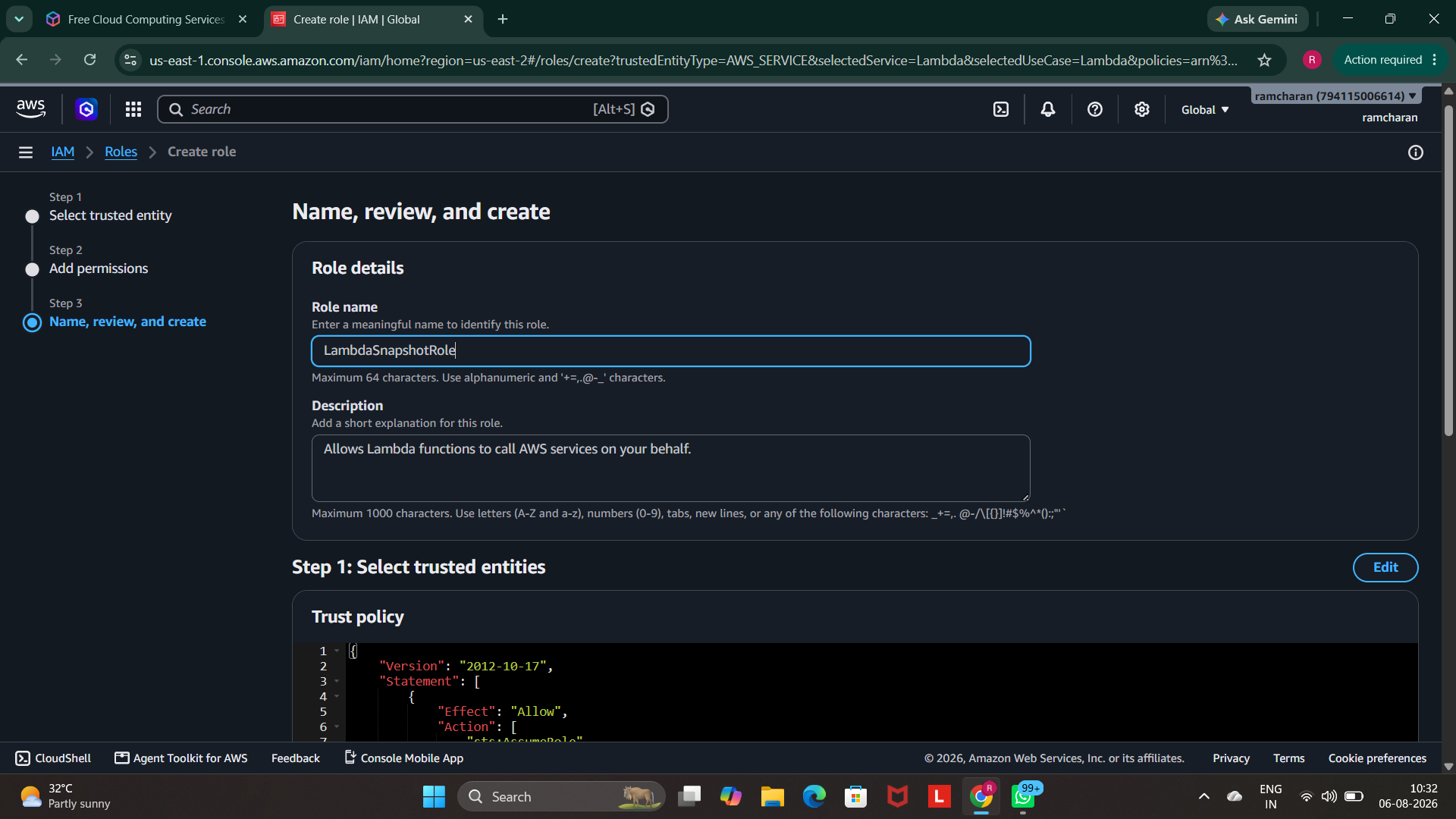
Figure 3: Naming and reviewing the custom IAM role LambdaSnapshotRole.
Step 4: Create the AWS Lambda Function Now, create the Lambda function that hosts the Python automation script.
Open the AWS Lambda Console and click Create Function.
Choose Author from scratch.
Name your function (e.g., deleteoldsnapshots).
Select Python 3.x as the Runtime environment.
Expand Change default execution role and select Use an existing role, choosing LambdaSnapshotRole.
Click Create function.
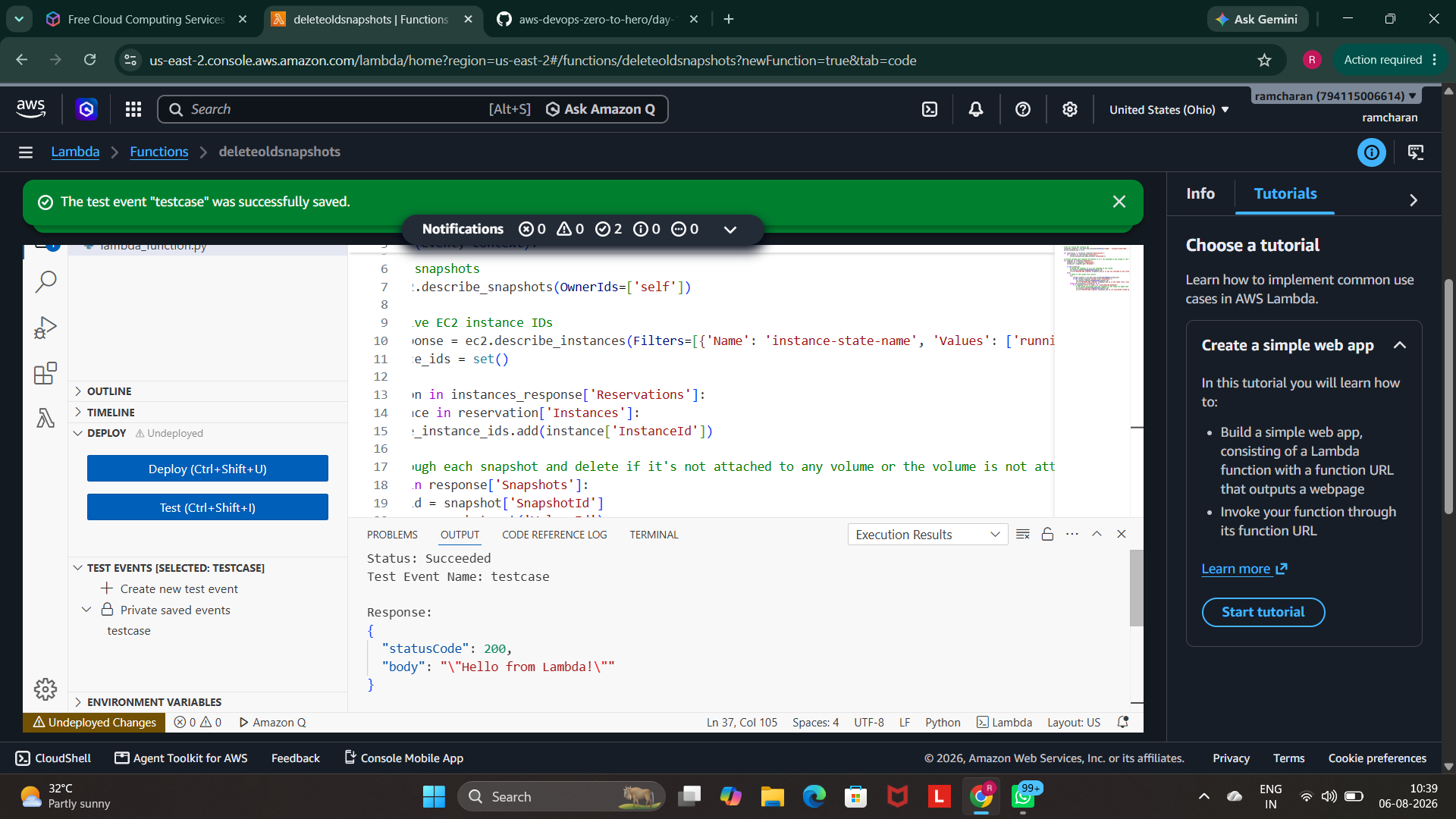
Figure 4: Lambda function overview screen after creation.
Step 5: Add Python Script & Run Test Case 1 (Instance Active) Replace the default Lambda handler code with the Python code below to check for active instances and avoid deleting active snapshots:
Python import boto3
def lambda_handler(event, context): ec2 = boto3.client('ec2')
# Get all EBS snapshots
response = ec2.describe_snapshots(OwnerIds=['self'])

# Get all active EC2 instance IDs
instances_response = ec2.describe_instances(Filters=[{'Name': 'instance-state-name', 'Values': ['running']}])
active_instance_ids = set()

for reservation in instances_response['Reservations']:
    for instance in reservation['Instances']:
        active_instance_ids.add(instance['InstanceId'])

# Iterate through each snapshot and delete if it's not attached to any volume or the volume is not attached to a running instance
for snapshot in response['Snapshots']:
    snapshot_id = snapshot['SnapshotId']
    volume_id = snapshot.get('VolumeId')

    if not volume_id:
        # Delete the snapshot if it's not attached to any volume
        ec2.delete_snapshot(SnapshotId=snapshot_id)
        print(f"Deleted EBS snapshot {snapshot_id} as it was not attached to any volume.")
    else:
        # Check if the volume still exists
        try:
            volume_response = ec2.describe_volumes(VolumeIds=[volume_id])
            if not volume_response['Volumes'][0]['Attachments']:
                ec2.delete_snapshot(SnapshotId=snapshot_id)
                print(f"Deleted EBS snapshot {snapshot_id} as it was taken from a volume not attached to any running instance.")
        except ec2.exceptions.ClientError as e:
            if e.response['Error']['Code'] == 'InvalidVolume.NotFound':
                # The volume associated with the snapshot is not found (it might have been deleted)
                ec2.delete_snapshot(SnapshotId=snapshot_id)
                print(f"Deleted EBS snapshot {snapshot_id} as its associated volume was not found.")
Deploy the code by clicking Deploy.
Click Test to configure a new test event named testcase.
Execute the test event. Because the EC2 instance is still running, the code executes successfully (Status: Succeeded) without deleting the active snapshot.
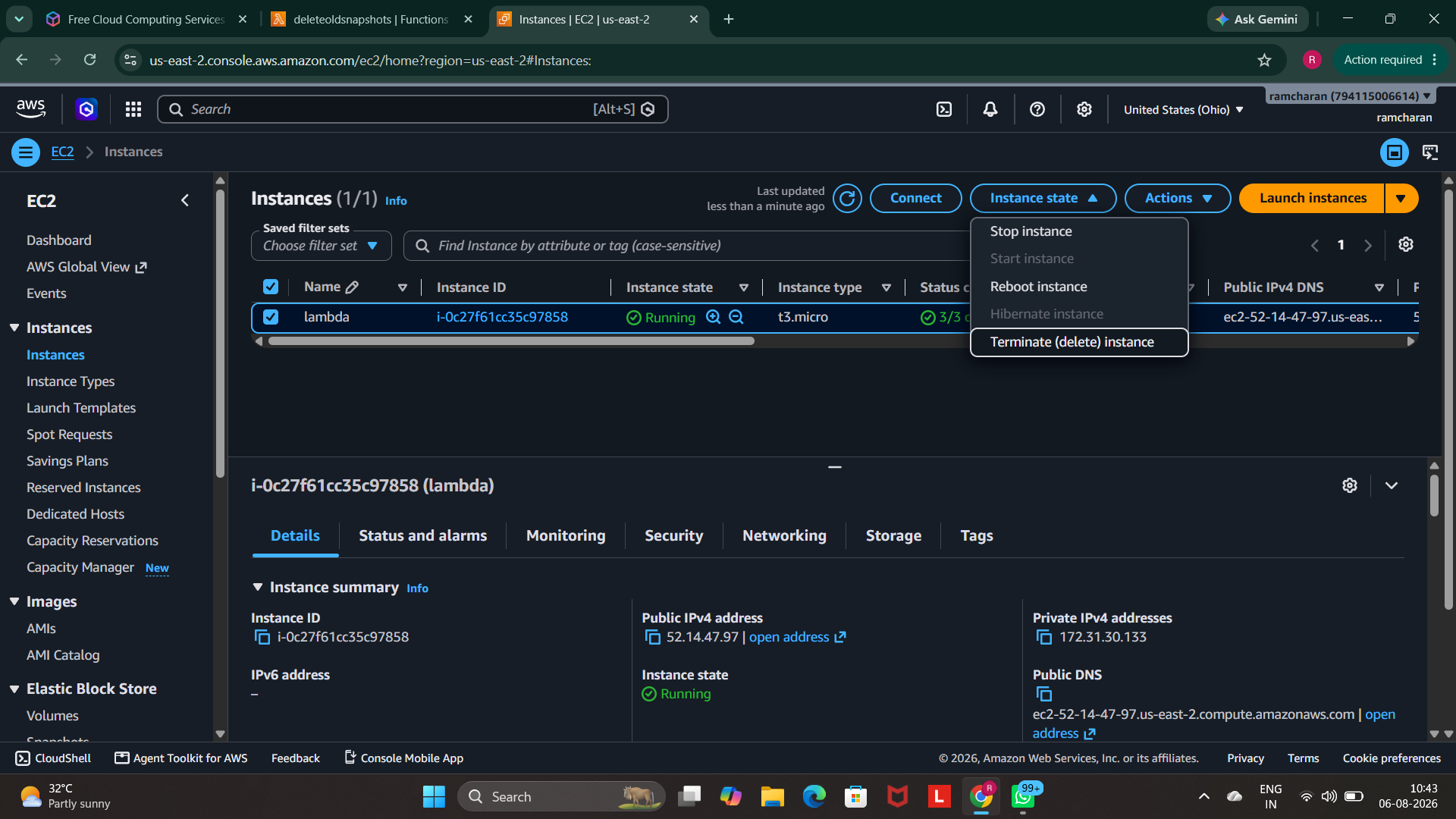
Figure 5: Successful execution of the Lambda test event.
Step 6: Simulate Stale Snapshot by Terminating the EC2 Instance To verify that the automation script correctly cleans up orphaned snapshots, terminate the associated EC2 instance.
Navigate back to the EC2 Console > Instances.
Select your test instance (lambda).
Click Instance state > Terminate (delete) instance.
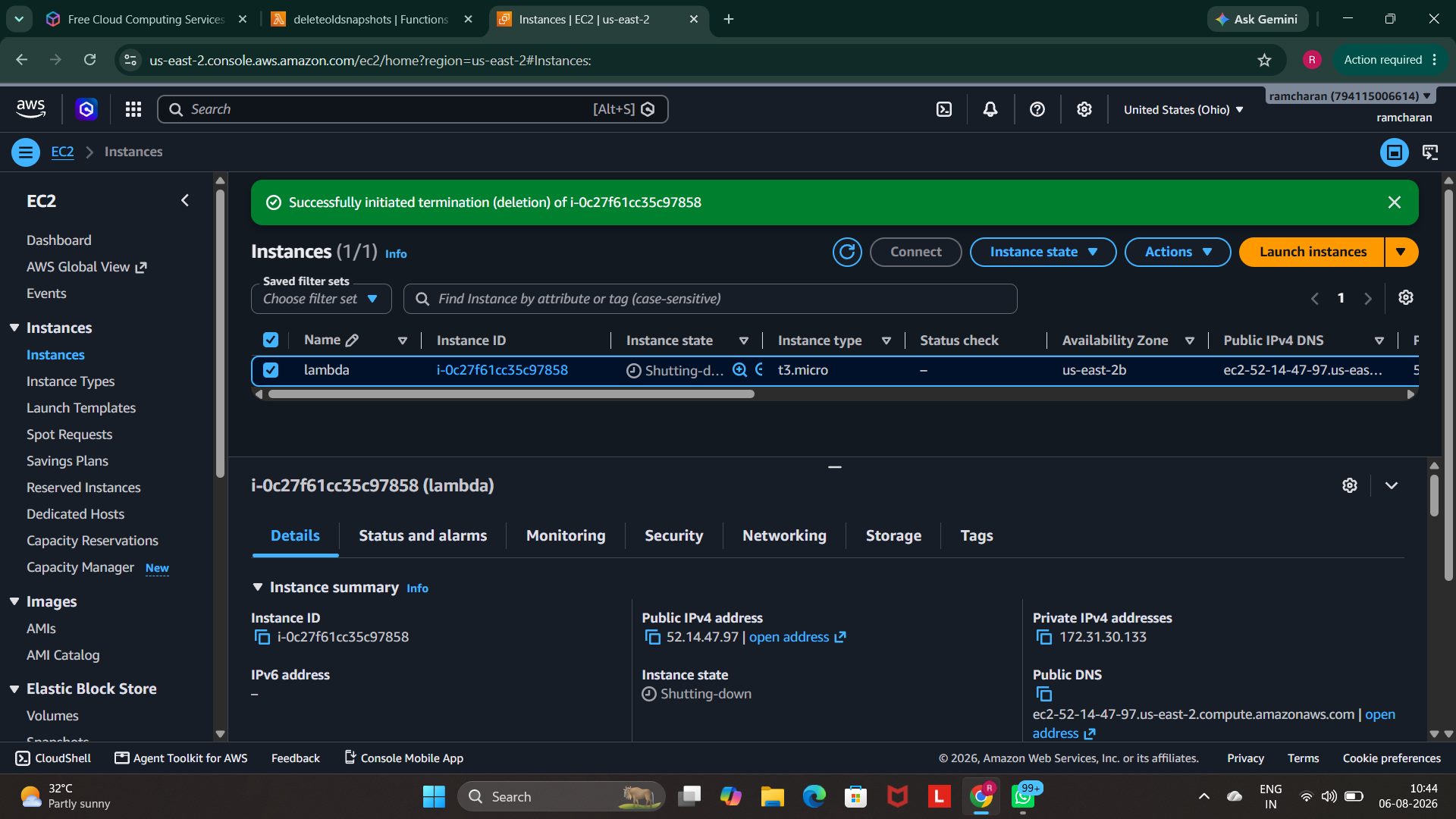
Figure 6: Initiating EC2 instance termination.
Wait for the status to change to Shutting-down and finally Terminated.
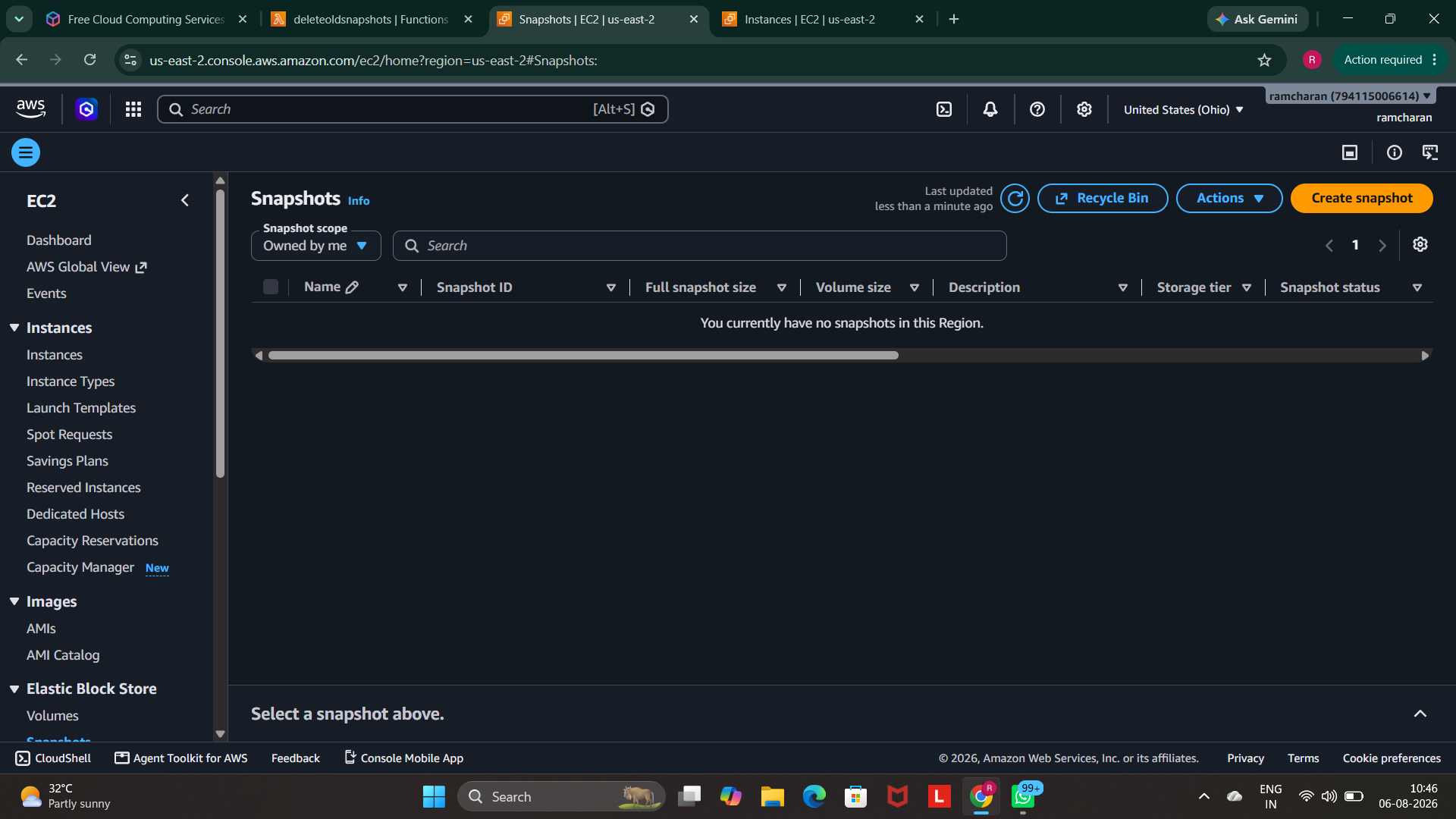
Figure 7: EC2 Instance entering shutting-down state.
Step 7: Re-run Lambda Execution & Verify Snapshot Deletion Return to the AWS Lambda Console for deleteoldsnapshots.
Trigger the testcase execution again. The script detects that the EC2 instance no longer exists and calls the delete_snapshot API for the unattached snapshot.
Open the EC2 Console > Snapshots.
Refresh the list. You will see "You currently have no snapshots in this Region", confirming that the stale snapshot was successfully deleted.
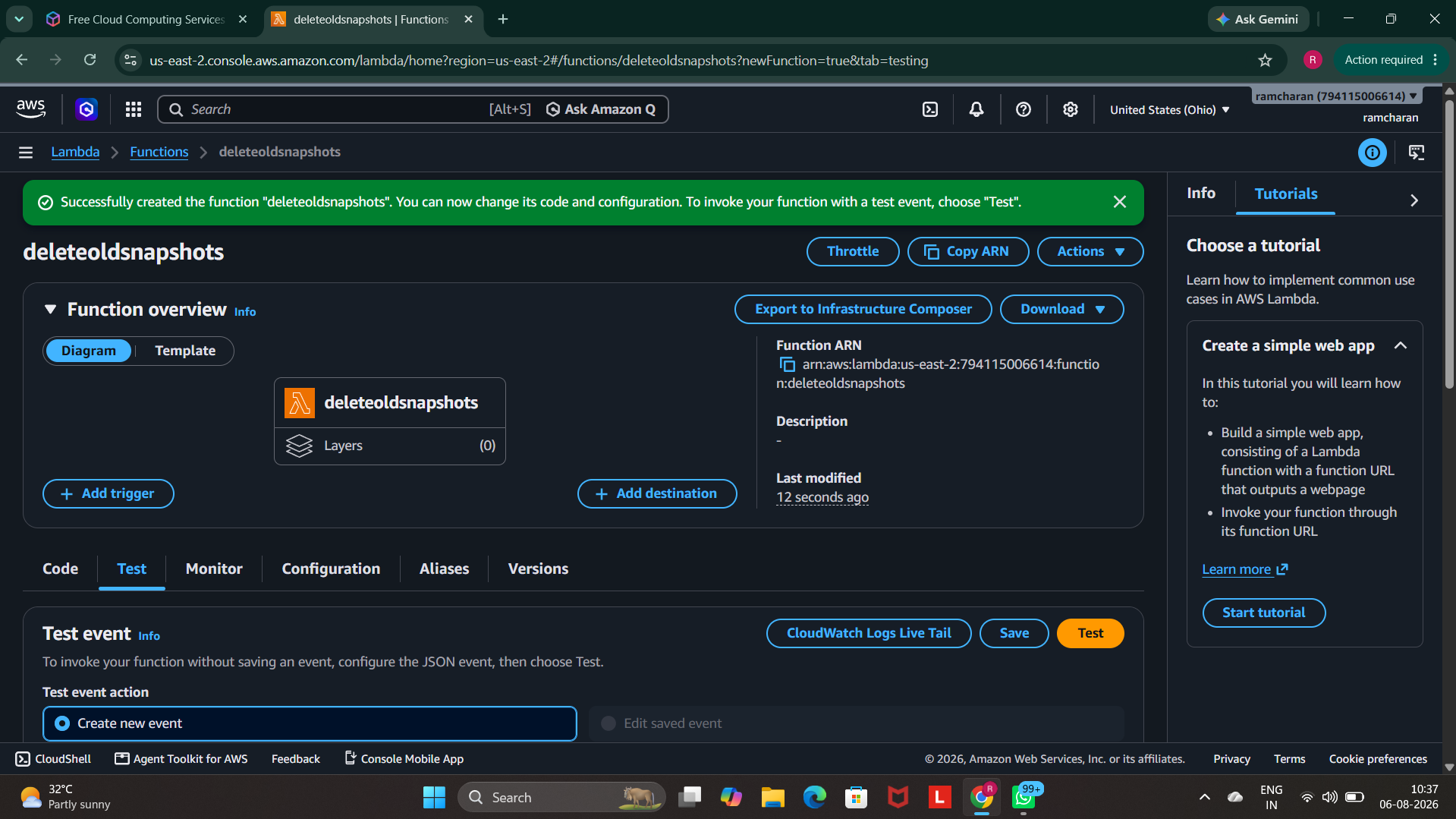
Figure 8: Snapshots page showing zero snapshots after automated cleanup.
Comments
Join the discussionNo comments yet. Be the first to comment.


